

























It is preferred and used by many major brands

Şablon Mesaj Yönetimi

Manage WhatsApp Template Messages in one place

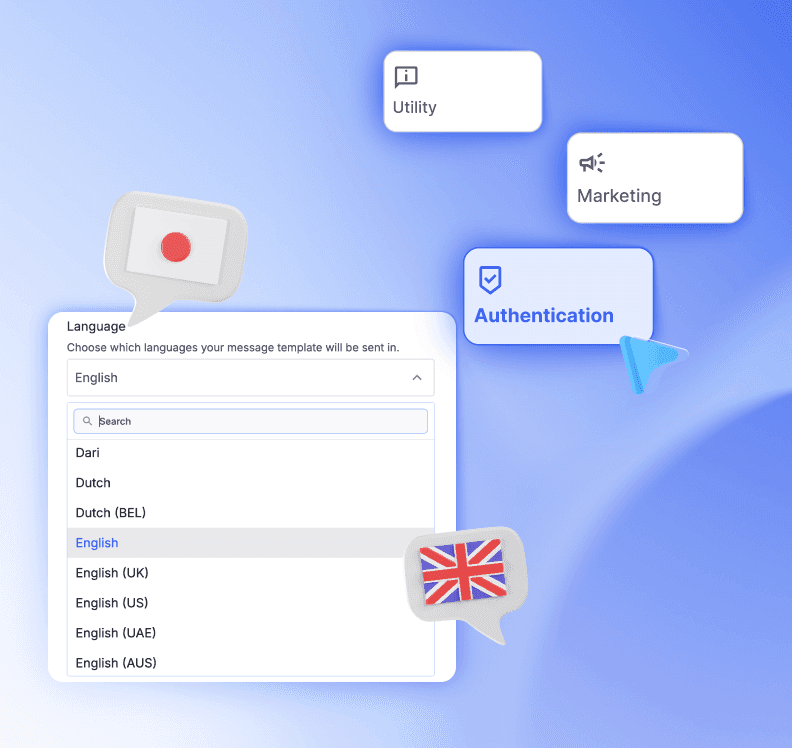
Create Marketing, Utility, and Authentication Template Messages through Connexease. Configure message components and variables, submit templates for Meta approval, and use approved content in individual, bulk, or automated customer communication workflows.
Manage WhatsApp Template Messages in one place

Bring your WhatsApp Template Message operations into one management workspace

Manage your Template Message operations by bringing category selection, personalization, approval processes, and different sending methods together in a single management workspace.
Create Templates More Easily

Generate Template Message fields with AI assistance using text or voice prompts, and customize the content to your needs before submitting it for approval.

Track the Approval Process in One Place

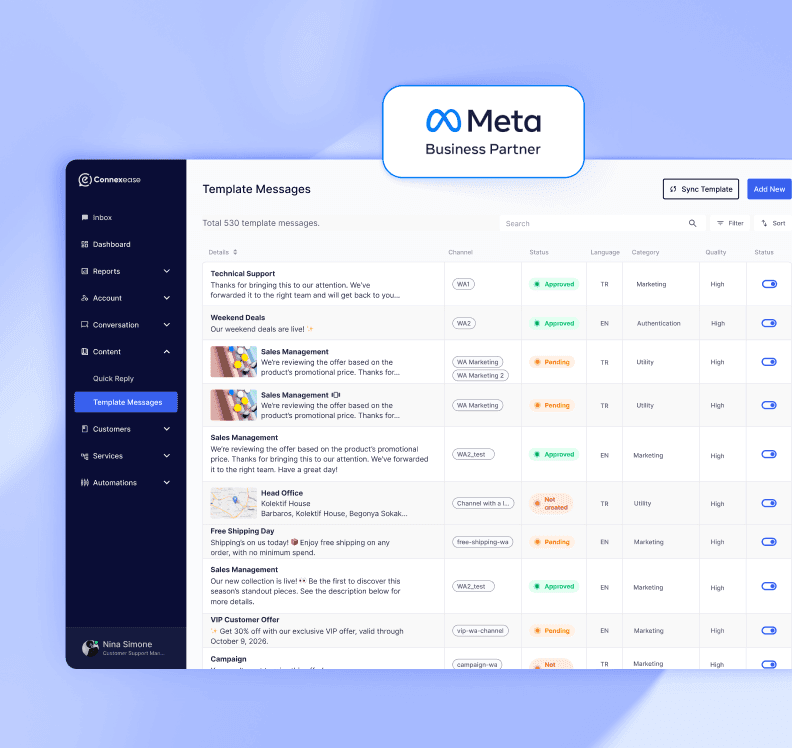
Submit templates for Meta approval through Connexease. Monitor approval, rejection, category changes, and quality statuses directly from the platform.

Personalize Your Messages

Populate Template Message variables using data from manually uploaded Excel or CSV files or API parameters.

Use Approved Templates Across Different Workflows

Use Template Messages for individual, bulk, tag-based, and scheduled sends, as well as through APIs or external system workflows configured by your business.

Manage business-initiated WhatsApp communication with approved message templates

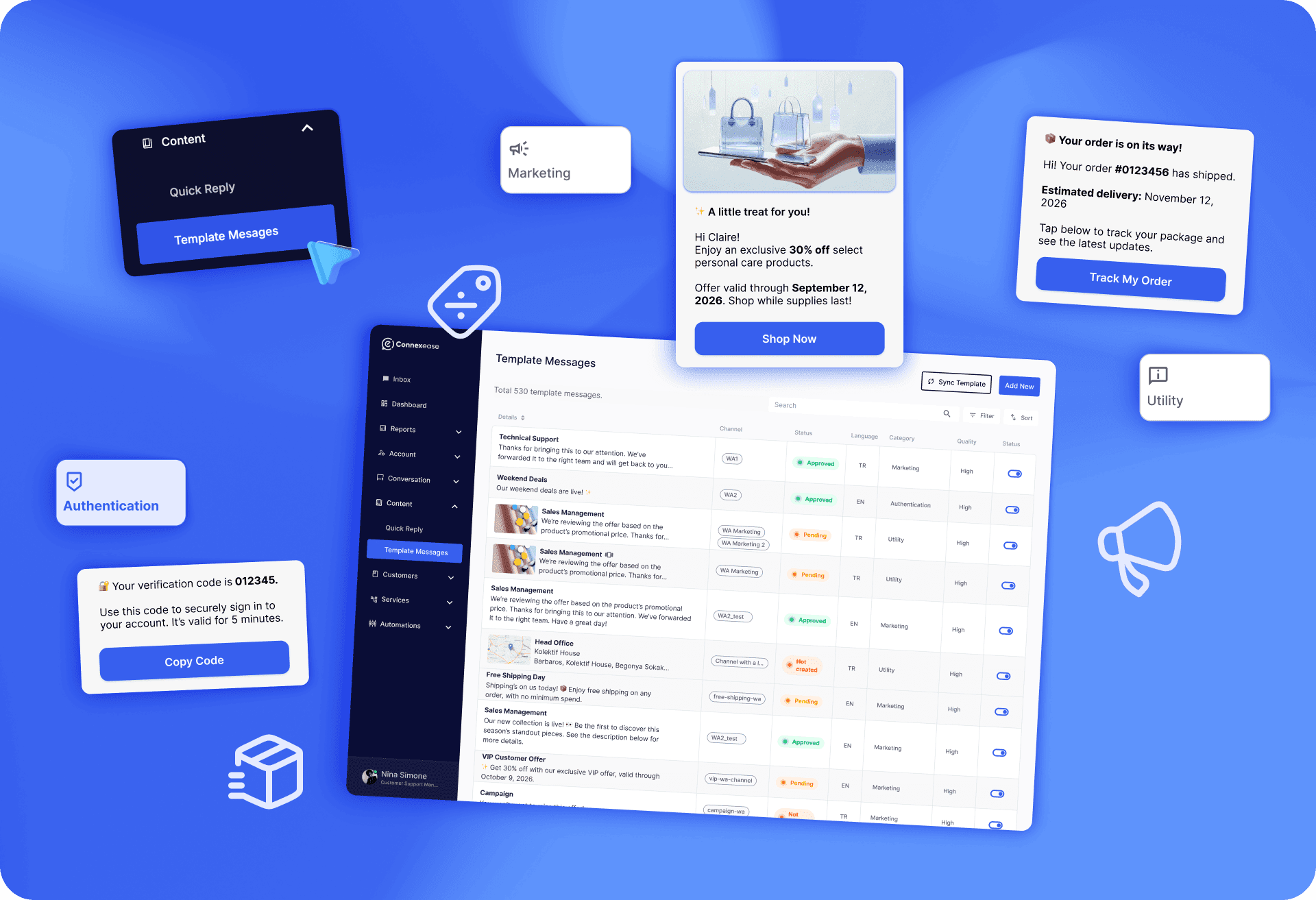
Template Messages are a messaging format that enables businesses to send structured content approved by Meta to customers through WhatsApp. They are used for business-initiated communication and to reopen conversations outside the customer service window.
[object Object]
Marketing
Campaign and Engagement-Focused Communication

Used for product or service promotions, campaign announcements, special offers, and messages designed to re-engage customers.

[object Object]
Utility
Updates Related to Customer Transactions

Used for updates related to customer transactions, submitted requests, or ongoing service processes.

[object Object]
Authentication
Authentication and Security Messages

Used for one-time password messages sent to verify a user's identity or securely complete a transaction.

Create Template Message fields using text or voice prompts

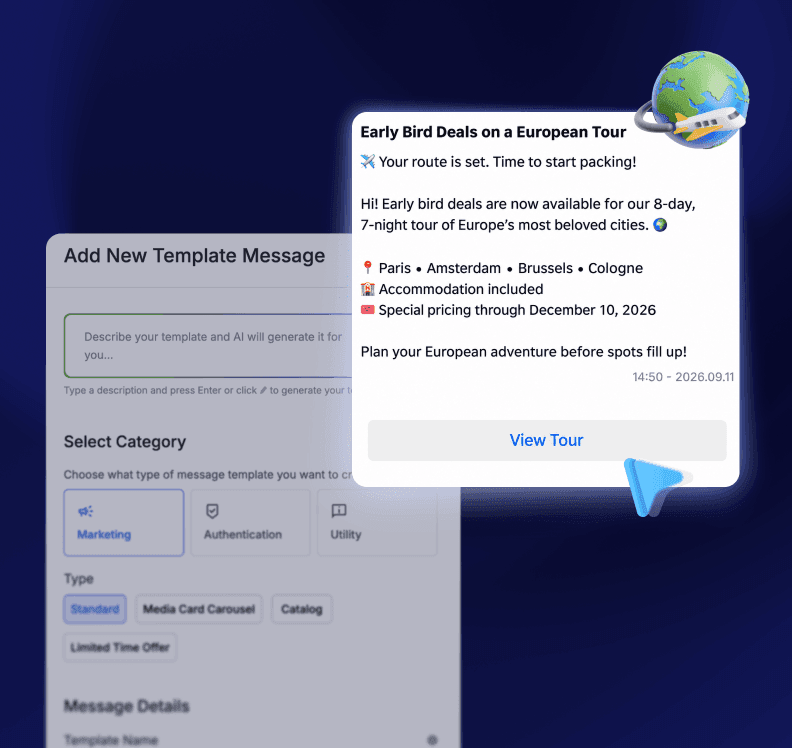
Describe the purpose of the message you want to send to Connexease in writing or by voice. Use AI assistance to generate the category, message name, language, header, body, footer, and button fields. Review and edit all content before submitting the template for Meta approval.

Describe the content you want to create in natural language, such as a campaign announcement, transactional update, or authentication message.

Learn more

Use voice commands through the web panel or mobile app to initiate the creation of a Template Message draft.

Learn more

Create content in different languages for the same communication need. Manage each language version as a separate Template Message.

Learn more
inbox feature image

Manage Template Messages from creation to deactivation

View templates used across different WhatsApp communication scenarios in a shared management workspace within Connexease. Edit content, duplicate existing templates, review previous versions, and archive or disable templates that are no longer in use.

Create a New Template

Create a New Template

Prepare a new Template Message in the Marketing, Utility, or Authentication category.

Duplicate an Existing Template

Duplicate an Existing Template

Duplicate and edit existing templates for similar content, languages, or use cases.

Select the Starting Screen

Select the Starting Screen

Define the first screen customers will see when they open the Flow.

View Previous Versions

View Previous Versions

Review previous versions of a template to track changes made to its content.

Archive or Disable Templates

Archive or Disable Templates

Move templates that are no longer in use out of the active library by archiving or disabling them.

Manage with Authorized Users

Manage with Authorized Users

Template Message creation, editing, and submission for Meta approval can be performed by users with Admin and Channel Admin roles.

inbox feature image

Configure Template Messages by category, language, and WhatsApp number

Define the communication purpose, language, and WhatsApp number for each template during creation. Maintain a controlled template structure for different brands, countries, or operational needs.

Category Selection

Category Selection

Marketing, Utility. Authentication

Language Selection

Language Selection

Prepare each language version as a separate Template Message and manage its own approval process.

WhatsApp Number Selection

WhatsApp Number Selection

Select the connected WhatsApp Business number where the template will be used. Use the same template across multiple connected WhatsApp numbers.

Populate Template Message variables with file or API data

Insert information such as customer names, order numbers, appointment dates, authentication codes, or personalized links into Template Message variables using manually uploaded files or API parameters.

Supported Data Sources

  • Manual Excel or CSV File Upload
  • API Parameters

Example Variables

  • Customer Name
  • Order or Transaction Number
  • Appointment Date
  • Reservation Code
  • Delivery Information
inbox feature image

Launch WhatsApp Flow experiences from Template Message buttons

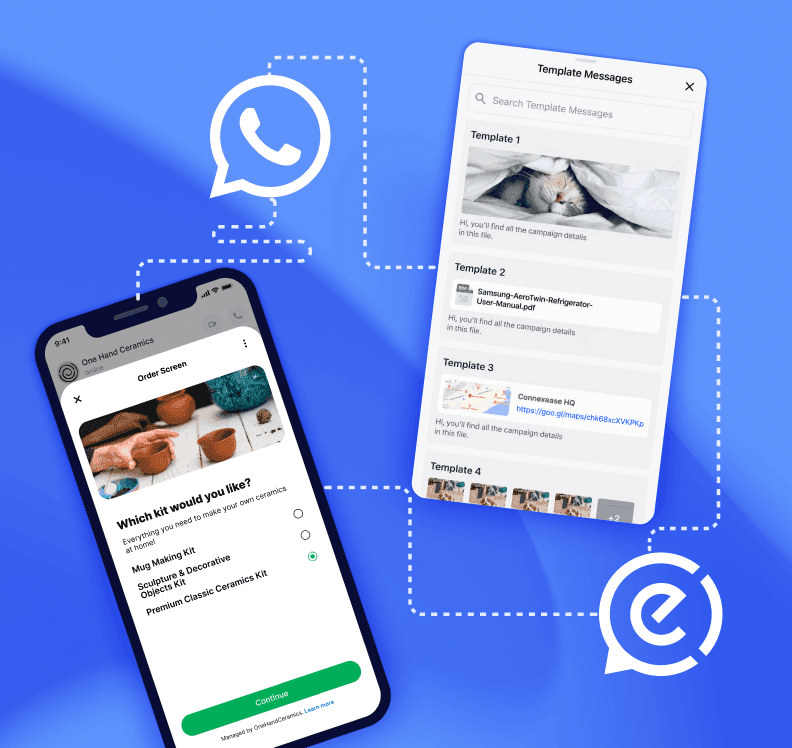
Connect WhatsApp Flows created in Meta to Template Message buttons. Enable customers to fill out forms, share information, or proceed through structured workflows without leaving their WhatsApp conversation.

Connect a Flows

Connect a Flows

Configure the Flows ID, Flow Action, and starting screen information through the Connexease panel.

Navigation

Navigation

Direct customers to a specific screen within the Flow.

Update an Approved Template

Update an Approved Template

Make changes to an approved template and resubmit the updated content for Meta review.

Data Exchange

Data Exchange

Support more dynamic processes that require Flows to work with data from business systems.

Check Both Statuses

Check Both Statuses

Check the Template Message approval status and Flow publication status together before sending.

inbox feature image

Submit Template Messages for Meta review and monitor their current status

Submit your prepared message templates for Meta approval through Connexease. Track updates related to review, approval, rejection, category changes, and quality statuses directly from the platform.

Submit for Meta Approval

Submit for Meta Approval

Submit the Template Message for review once its category, language, message components, variables, and buttons are complete.

Track Template Statuses

Track Template Statuses

Monitor current Template Message statuses through the platform, including Draft, Pending, Approved, Rejected, Paused, Disabled, and In Appeal.

View Review Feedback

View Review Feedback

View review feedback provided by Meta directly through Connexease.

Edit and Resubmit

Edit and Resubmit

Edit content that requires changes following the review process and resubmit it for approval.

View Category Changes

View Category Changes

Track the updated category when Meta classifies a template under a different category.

Monitor Quality Status

Monitor Quality Status

View quality statuses or quality warnings provided by Meta.

Send approved Template Messages to individual customers or multiple recipients

Use Template Messages within active conversations, reopen conversations after the customer service window has closed, or send bulk and scheduled messages to selected recipient groups.

Individual Sending

  • Send within an active conversation
  • Reopen a conversation after its service window expires
  • Start a new conversation with a specific phone number

Bulk Sending

Send an approved template to multiple recipients and populate variables individually for each customer.

Tag-Based Sending

Use customer tags within Connexease to send messages to the relevant recipient groups.

Scheduled Sending

Schedule messages to be sent at a future date and time.

Connect Template Message sending to APIs, CRM, and business automation

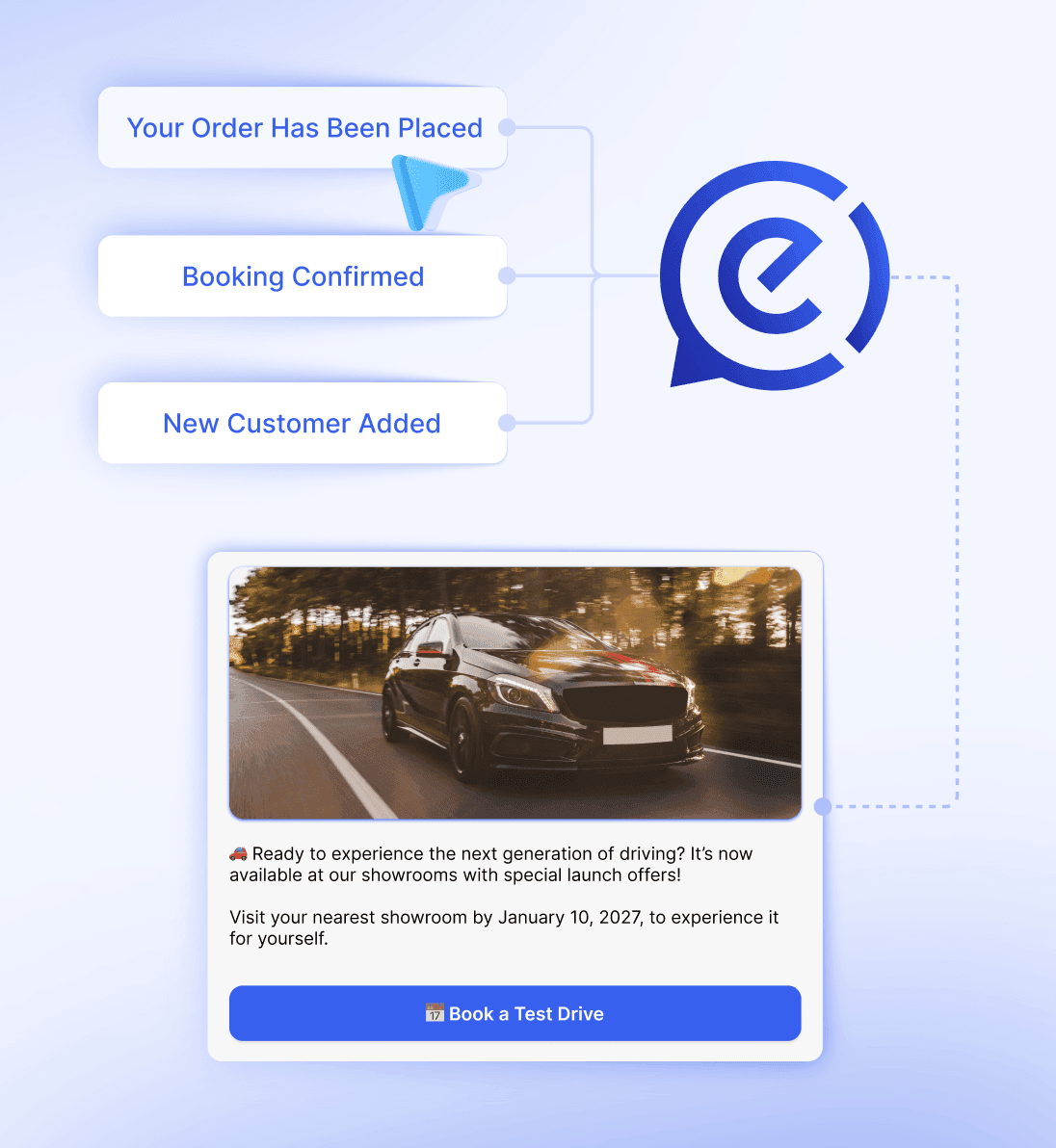
Initiate approved Template Messages not only from the Connexease panel but also through APIs or external system workflows configured by your business.

Where Can You Use It?

Sending via API

Initiate individual or bulk sends by passing recipient, template, and variable information through API parameters.

Webhooks and Third-Party Systems

Transfer events from order, reservation, membership, or business-specific systems to Connexease through webhooks.
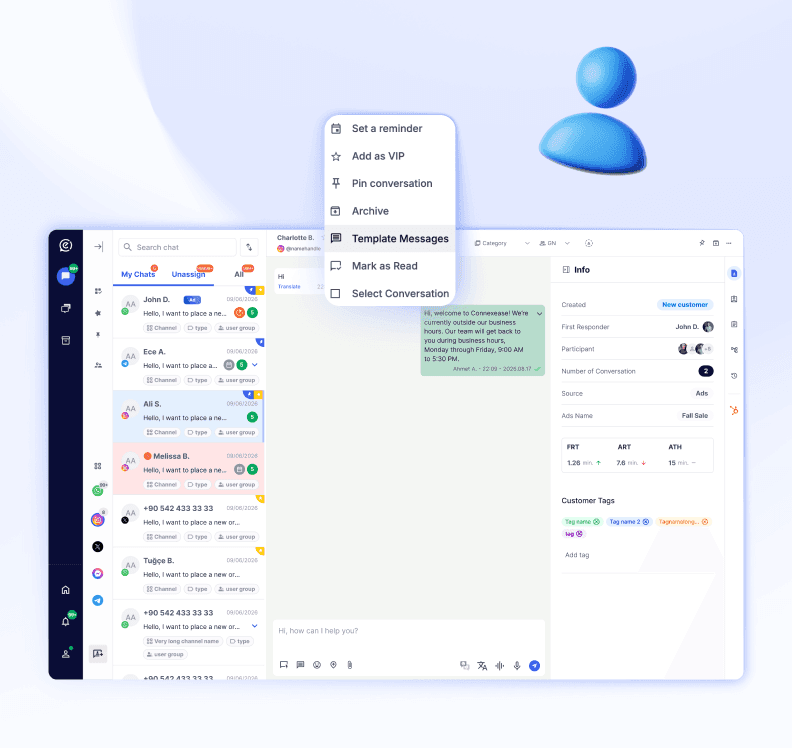
Connect Template Message sending to APIs, CRM, and business automation
inbox feature image

Bring Template Message responses into your live customer operations

Define how conversations will be managed after sending Template Messages. When customers respond, bring the conversation into Connexease Inbox to continue the support or sales process.

Select a Group

Select a Group

Define the agent group associated with the message sent.

Assign to Me and Archive

Assign to Me and Archive

Associate the conversation with the sending agent and archive it after sending.

Remove Assignment and Archive

Remove Assignment and Archive

Move the conversation to the archive without assigning ownership to a specific agent.

Keep Open

Keep Open

Keep the conversation visible in the active Inbox workspace after sending.

Bring Customer Responses into Inbox

Bring Customer Responses into Inbox

When the customer responds, bring the conversation back into Connexease Inbox.

Apply Automatic Assignment

Apply Automatic Assignment

Route the conversation after a customer response to an available agent using the supported automatic distribution methods.

inbox feature image

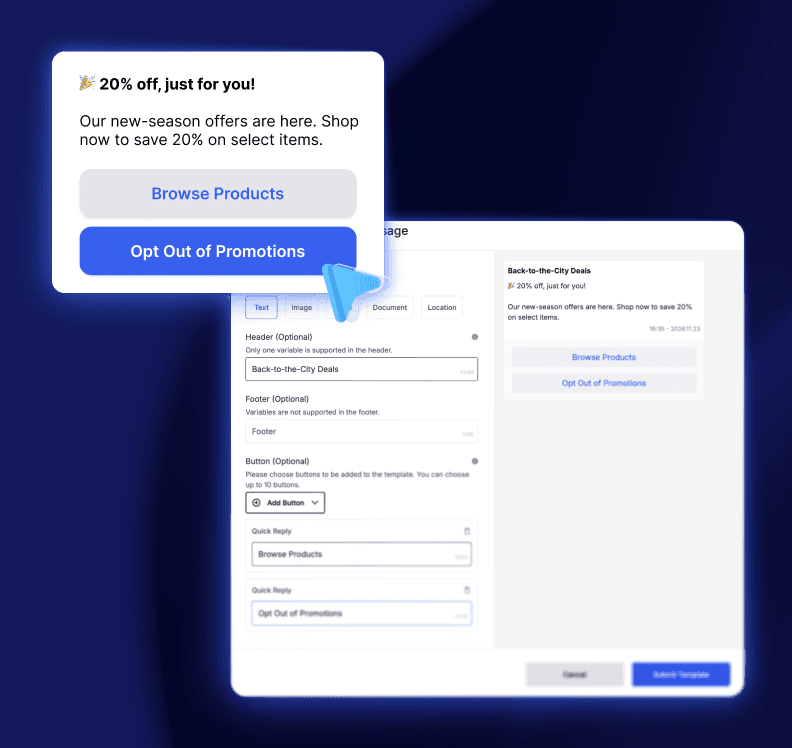
Manage marketing opt-out requests through Template Messages

Add a "Stop Promotions" button to Marketing Template Messages, allowing customers to submit requests to opt out of marketing communication directly through WhatsApp.

Add the Stop Promotions Button

Add the Stop Promotions Button

Give customers an opt-out option within Marketing messages.

Update the Marketing List

Update the Marketing List

When customers tap the button, they are removed only from the Marketing list.

Apply Preferences Across Sending Methods

Apply Preferences Across Sending Methods

Take customer preferences into account for Marketing messages sent individually, in bulk, through APIs, or through automation configured by your business.

View Preferences in Profiles and Reports

View Preferences in Profiles and Reports

View customer marketing communication preferences in their profiles and the relevant reporting sections.

Allow Customers to Opt In Again

Allow Customers to Opt In Again

Customers can later give permission to receive marketing communication again, and their updated preferences can be reflected in the system.

Track Template Message sending status and results

Communication in healthcare institutions becomes increasingly complex due to high demand from different channels.

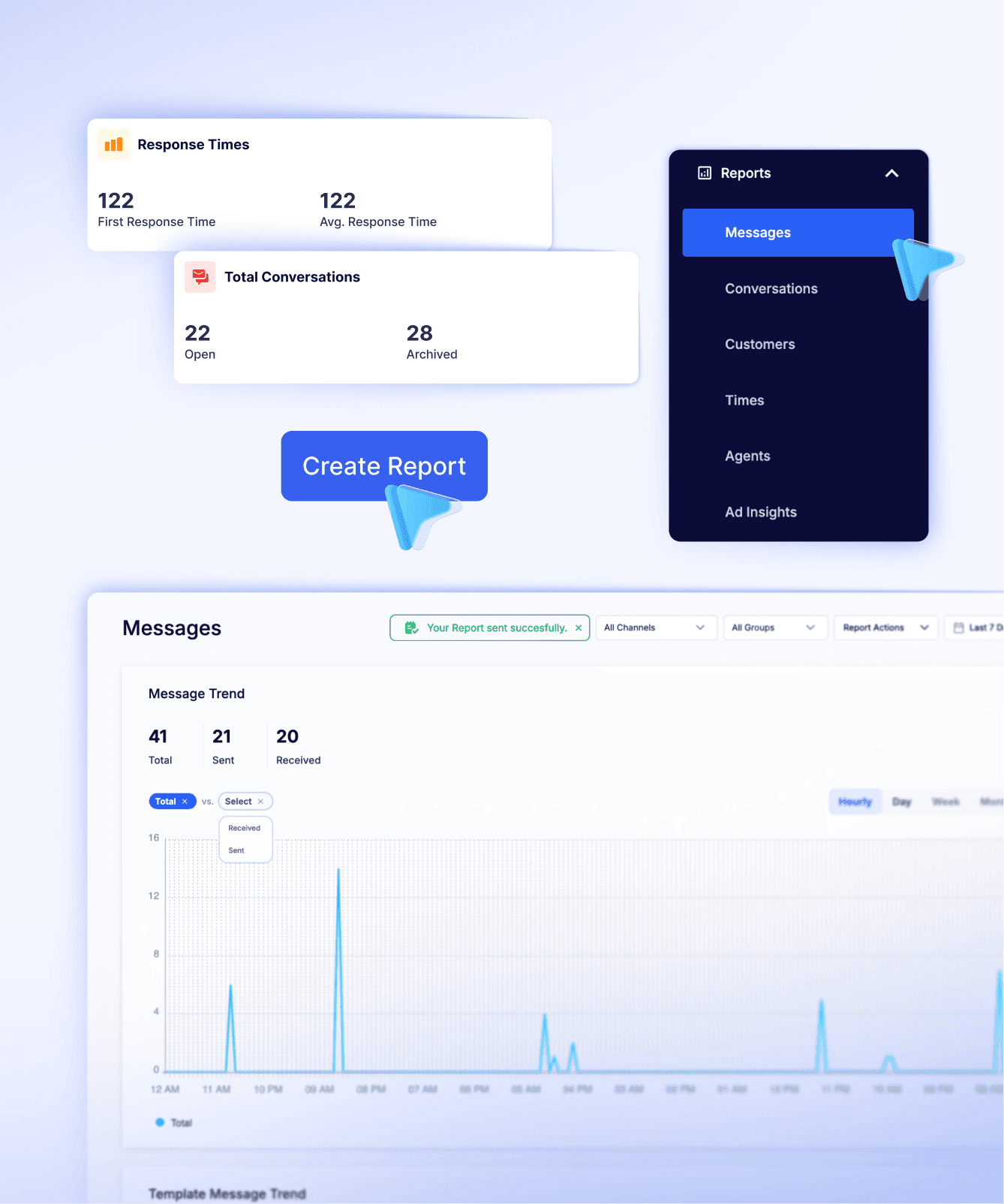
Review which Template Message was sent and when, its current delivery status in the system, whether a link was clicked, and any error reasons provided for failed sends.

Evaluate sending records together with template, conversation, customer, agent, group, and channel information in Reporting & Performance.

See Template Message Reports in Action

Use Marketing, Utility, and Authentication messages across different customer scenarios

Prepare Template Messages in the appropriate category for different needs, from campaign announcements and transactional updates to appointment reminders and authentication codes.

Marketing

  • Campaign and Discount Announcements
  • New Product or Service Promotions
  • Event and Launch Invitations
  • Loyalty and Membership Communication
  • Limited-Time Offers
  • Unsubscription

Utility

  • Order and Transaction Confirmations
  • Appointment Reminders
  • Delivery and Status Updates
  • Reservation Information
  • Account and Service Notifications
  • Continuing Transactions Through WhatsApp Flows

Authentication

  • Login Verification
  • Transaction Confirmation
  • Account Verification
  • Password Reset
  • Copy Code
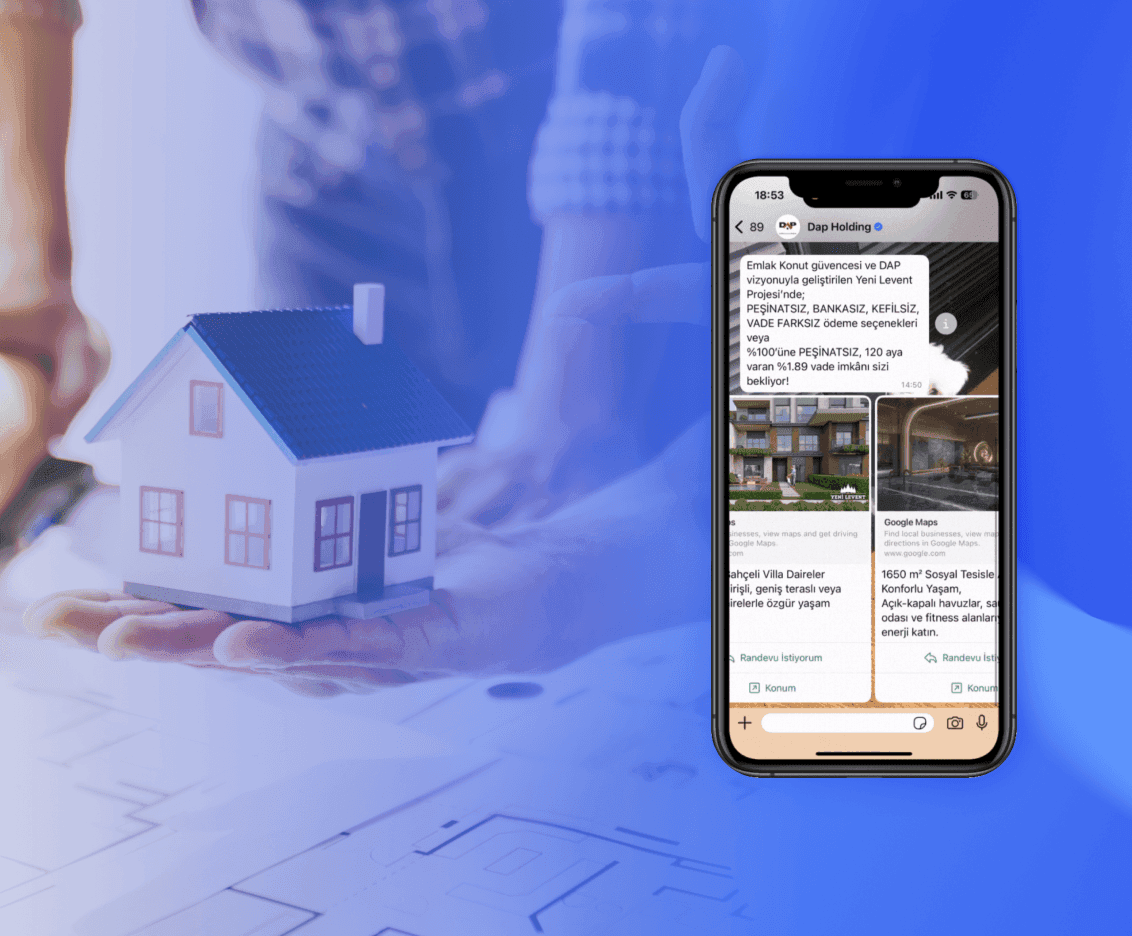
DAP Yapı Improved Appointment Conversions with Visual Messaging

DAP Yapı Improved Appointment Conversions with Visual Messaging

DAP Yapı used appointment reminders, marketing content, and special campaign announcements through WhatsApp to present its projects in a more visual and informative way and increase appointment conversions. On days when carousel messages were sent, the appointment conversion rate increased by 35% compared to days when individual messages were used. The source also indicates that greater visual variety helped increase customer interest and engagement.

DeFacto Increased OTP Delivery Rates from 70% to 93%

DeFacto Increased OTP Delivery Rates from 70% to 93%

DeFacto faced high SMS costs, complex operator agreements, and low delivery rates across its MENA and Asia operations. By sending OTP messages through WhatsApp instead of SMS, the delivery rate increased from 70% to 93%. The source also indicates that the need to establish separate agreements with SMS providers in each country was eliminated.

Use message templates together with other platform capabilities

Use Connexease's other platform capabilities to add customer data to messages, manage responses across teams, initiate communication from system events, and track results.

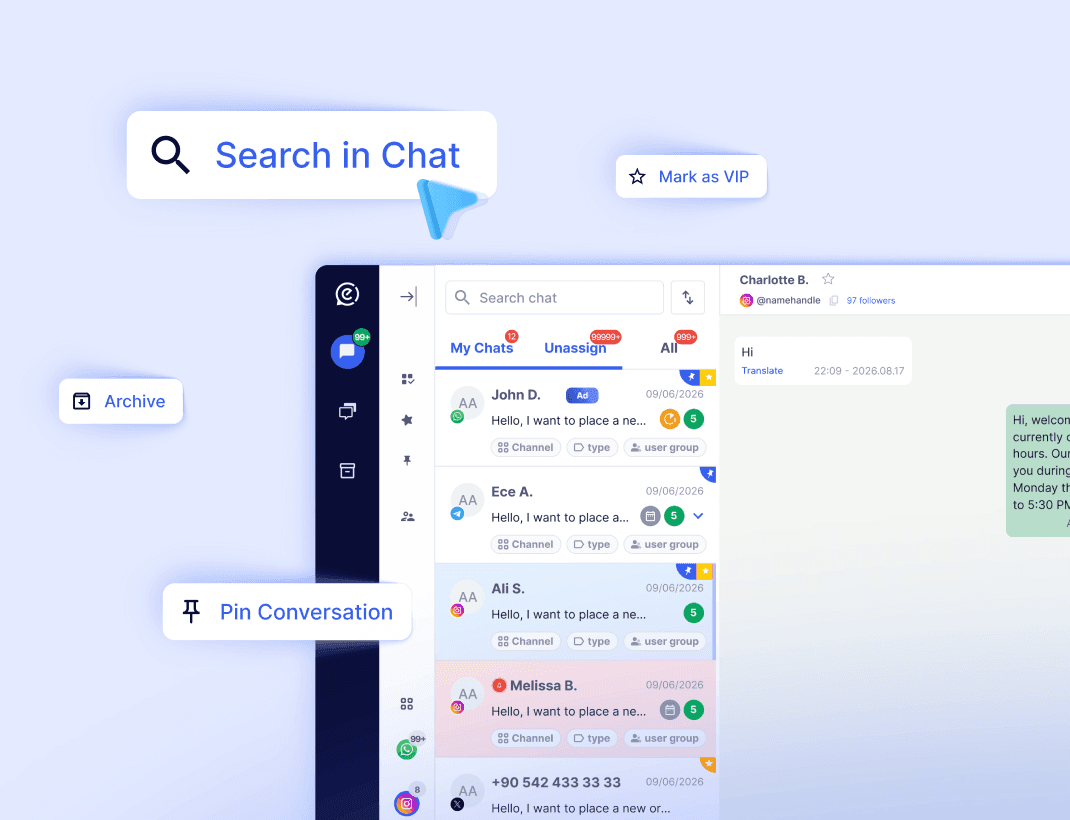
Manage Conversations Across Different Channels in a Shared Workspace

Omnichannel Inbox

Manage Conversations Across Different Channels in a Shared Workspace

Search, organize, and track conversations together with available customer context.

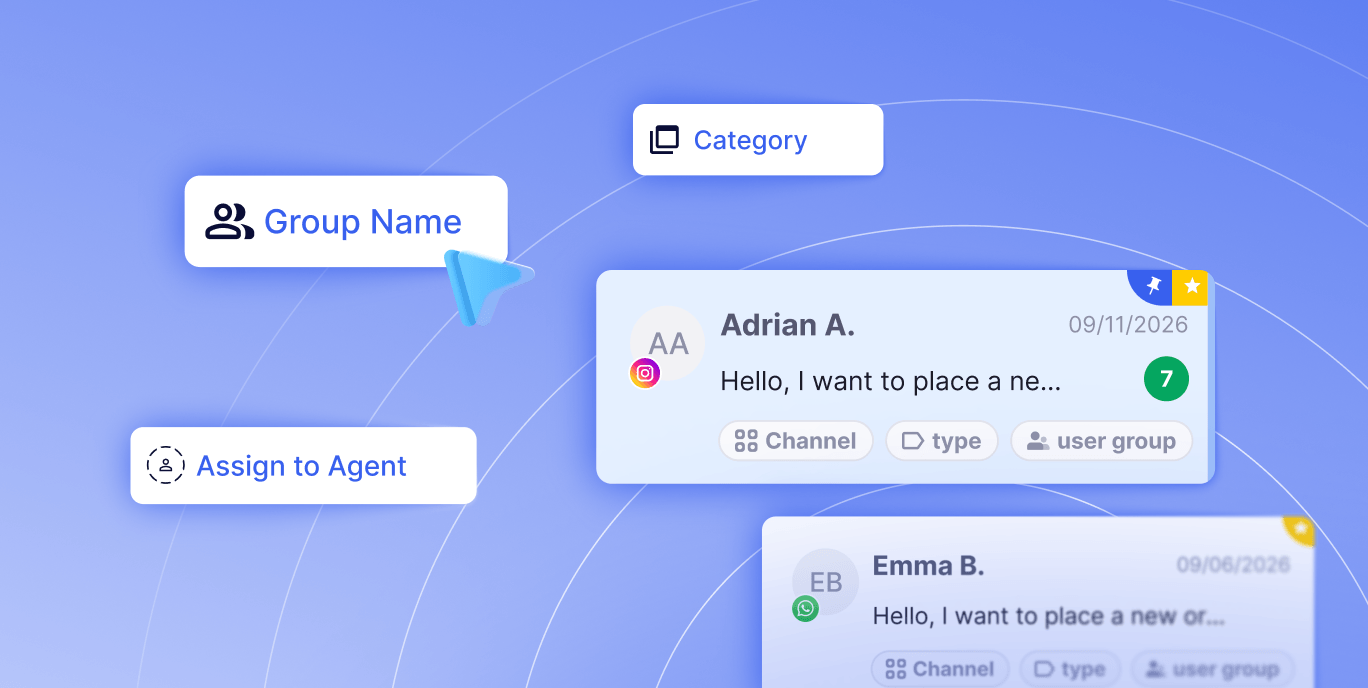
Manage Conversation Ownership and Team Workloads

Live Support

Manage Conversation Ownership and Team Workloads

Associate conversations with agents or groups, and organize assignment, transfer, and team workflows.

Chatbot & Automation

Define Automated Actions for Specific Events and Operational Conditions

Manage repetitive tasks using Triggers and Smart Rules, and transfer integrated chatbot conversations to live support when necessary.

CRM & Integrations

Enrich Conversations with CRM Contact Information

View and update contact card fields from HubSpot, Zoho CRM, Jira, and Next4biz directly within Inbox.

Evaluate Customer Communication and Team Operations with Data

Reporting & Performance

Evaluate Customer Communication and Team Operations with Data

Review conversation and message volumes, response times, agent activities, and Template Message sending records.

Frequently asked questions about WhatsApp Template Message Management

Şablon Mesaj operasyonunuzu Connexease üzerinde nasıl yöneteceğinizi birlikte planlayalım

Move to a faster, smoother, and clearer support experience with Connexease today.

Start the Experience with Connexease
WhatsApp Template Message Management | Connexease